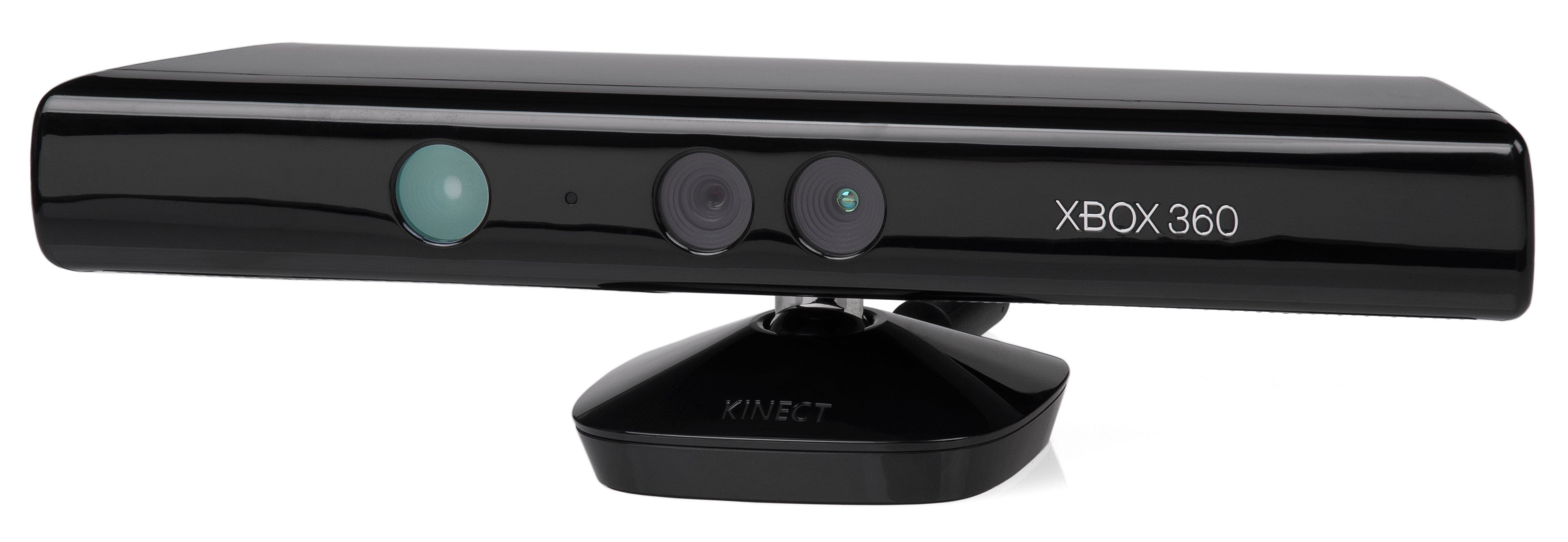
How-to: Successfully Install Kinect on Windows (OpenNI and NITE) - CodeProject

The following article has two purposes:
- From the architectural perspective: To show an approach to integrate Windows applications with smarthphone and tablet applications through HTML5 WebSockets.
It is not a goal of this article to provide a final and polished solution, the source code and applications provided are just for demonstrating the concept. Although the .net application uses the WPF library, it can be used with any UI library.
- From the software engineering perspective: To show a concrete and useful case of a Visual Studio remote debugging console on iPhones, extensible to Android devices.

 Introduction to article by Meshack Musundi
I have on several occasions scoured the net for a simple to use WPF webcam control and either my search queries were awful or I just wasn't comfortable with whatever I found. This webcam interest was recently increased when I read an article, here on CodeProject, that referred to an application that made use of a webcam. It was a Silverlight article and the ease with which one could utilize a webcam in Silverlight made me envious of WPF's little brother (or is it sister?). The VideoBrush in Silverlight is especially a nice touch.
It is with this pain and envy in mind that I decided to try my hand at creating a WPF control that could;
- Display webcam video with little coding effort
- Allow saving of webcam video to harddisk, with little coding effort
- Save the webcam video in a variety of video formats

I have on several occasions scoured the net for a simple to use WPF webcam control and either my search queries were awful or I just wasn't comfortable with whatever I found. This webcam interest was recently increased when I read an article, here on CodeProject, that referred to an application that made use of a webcam. It was a Silverlight article and the ease with which one could utilize a webcam in Silverlight made me envious of WPF's little brother (or is it sister?). The VideoBrush in Silverlight is especially a nice touch.
It is with this pain and envy in mind that I decided to try my hand at creating a WPF control that could;
- Display webcam video with little coding effort,
- Allow saving of webcam video to harddisk, with little coding effort,
- Save the webcam video in a variety of video formats.
 Image via WikipediaIntroduction to article
A flag enumeration is a very useful tool in programming. However, it is not straightforward to use flags in binding. Somehow or another, the particular flag has to be specified. This is possible using the binding "parameter". With this information, it is quite straightforward to convert for the View, but the problem is converting back. You would normally be binding to a checkbox and this value is either true or false (tri-state does not make sense). When converting back, there is no information about the state of the other flags. Without this information, it is not possible to update the flags value in the View-Model. This is one of the main reasons a special class is needed to support binding a set of flags to a View. Once there is an implementation to support flags in both WPF and Silverlight, implementations can be much cleaner.


I am going to assume that you already know C# and have at least a basic knowledge of using WPF and XAML. An understanding of MVVM, WPF styles, control templates and data-templates will also help, although I'll do my best to fill in some of the details along the way and provide links to learning resources.
Josh Smith's Guided Tour of WPF and Sacha Barber's WPF: A Beginner's Guide are a good place to start if you want a WPF primer. Christian Mosers WPF Tutorial.net is full of interesting snippets of WPF information and has some great diagrams that can help explain WPF concepts.
Josh Smith also has an article on MVVM and if you already know a bit of WPF and MVVM I can recommend reading Gary Hall's book, I just read it and found that it has helped progress my MVVM knowledge and experience.


ComputerCastle.Demo.Controls.FilterControlis a WPF-based Custom Control which can be used as quick filter for anyItemsControllikeListBox,ListView,DataGrid, etc. This article is to tell you how easy to create a Custom Control in WPF using combination of simple framework controls.
The article focus on:
- How to create a Custom Control in WPF briefly
- Explanation about
FilterControl- How to implement
FilterControl


This article describes how I went about creating a 2D image carousel. The reason for creating it,... I just wanted to see if I could. I was actually watching a Blackberry Playbook video and I wondered whether I could create a carousel like control that replicated the carousel features in the video. The Playbook's though is more elegant and I may all but envy. My carouselUserControl, aptly namedImageCarousel, only deals with images and five images at that. Sad as that may be you'll hopefully pick up something useful from this article so read on if you're still interested.


Assuming that you have a decent understanding of C++ and a modest understanding of C#, getting started in WPF shouldn't be too difficult. I started looking at WPF 6 months ago, and after probably causing a spike in Google's searches, I finally started to understand and become productive with WPF (whether I've missed the boat on this one, is another story for another day).
As with learning any new technology, you get the benefit of hindsight. From my perspective, almost every tutorial on WPF I've come across is inadequate for one of several reasons:
So to address this, I've written this based on what I would have liked to have found as the #1 hit on Google after typing 'WPF Tutorial'. This article may not be 100% correct, or even do things 'the one true way', but it will illustrate the main points that I wish I had found in one place 6 months ago.
- the example is all in WPF
- the example glosses over the key facts that would actually make your life easier.
- the example tries to show off WPF's capabilities with lots of pointless effects that aren't helping you.
- the example uses classes that have properties that appear far too similar to framework keywords and classes, and are therefore difficult to idenfity in the (XAML) code as being user defined (ListBox GroupStyle's Name is a complete headache for novices).
I will quickly introduce some topics, then show an example that explains or demonstrates each point. Accordingly, I haven't really attempted to make the GUIs pretty, that's not the point of this article (see the bullet points above).
As this tutorial is quite long, I've elided quite a lot of code for brevity, so please download the attached zip file, and look at the examples (.Net 4.0/VS2010). Each example builds on the previous one.


A mail merge involves merging the records in a database with a document template to produce a set of similar documents where the body of the document is constant but the details, specific to each individual record, change. This article explorers how to use WPF’s document viewing and printing classes to inspect, scale, and output mail merge letters produced from a XAML based template.

 Image via WikipediaIntroduction to article
This article is basically about a control that I have written for WPF, that allows users to create their own data items, which will be layed out in a layed out in a 3DViewportin layers. You can almost think of supplying a list of trees to a control that lays these items out in layers in 3D space. The control presented in this article also supports transparency and allows the DataTemplating of your custom data items, and allows full 2D interaction with theDataTemplated data items when the correspondingDataTemplateappliedVisualis created and hosted on a 3DViewport ViewPort2DVisual3D.Visual. So you get the best of both worlds, you get to use powerful techniques such as DataTemplating, but you also get to see you items layed out in 3D, and you can still interact with them.
The rest of this article will demonstrate the custom control which I have called "LevelTree3D".


Windows Presentation Foundation shortly known as WPF is a technology which is betterment of Windows Forms. The main advantage of WPF is User Interface design a developer can have good design using 2D and 3D rendering and adaptive documents, typography, vector graphics, runtime animation, and pre-rendered media.


Following in the footsteps of my previous article it would have been improper not to take on the task of xamlizing a four-legged creature. In short I decided to work on a WPF project that replicated a walking four-legged animal.


This is a short article that examines the implementation of a technique for drag selection of multiple items in a Canvas or ItemsControl derived class. In this article I use a ListBox to host the drag-selectable items.
In addition I look at how to make the selected items draggable. This felt like a natural addition as dragging the items is often what you would want to do after drag selecting them.


WPF has very powerful animation capabilities but in some cases, these are quite hard to use in combination with data driven content. One example is when aContentControlis dynamically rendering a view based on a bound object in its ViewModel.
This article shows a solution where a standardContentControlis enhanced to animate the transitions between content while still maintaining it's familiar functionality and behavior.


This little Drag & Drop Demo shows how you can modify the DataObject during a Drag & Drop operation. This is very useful if you want to provide a user interaction before you do the final drop into the destination. A good use for this would be the creation of a toolbox to add items to a destination (form, listbox, grid, etc.) where you want to customize (give a name, additional configurations, etc.) before you drop them.


